Language labs for schools and universities
A teacher console and a student client that turn a room of Windows PCs into a language laboratory, with speaking practice marked against CEFR. No internet, no account, no subscription.
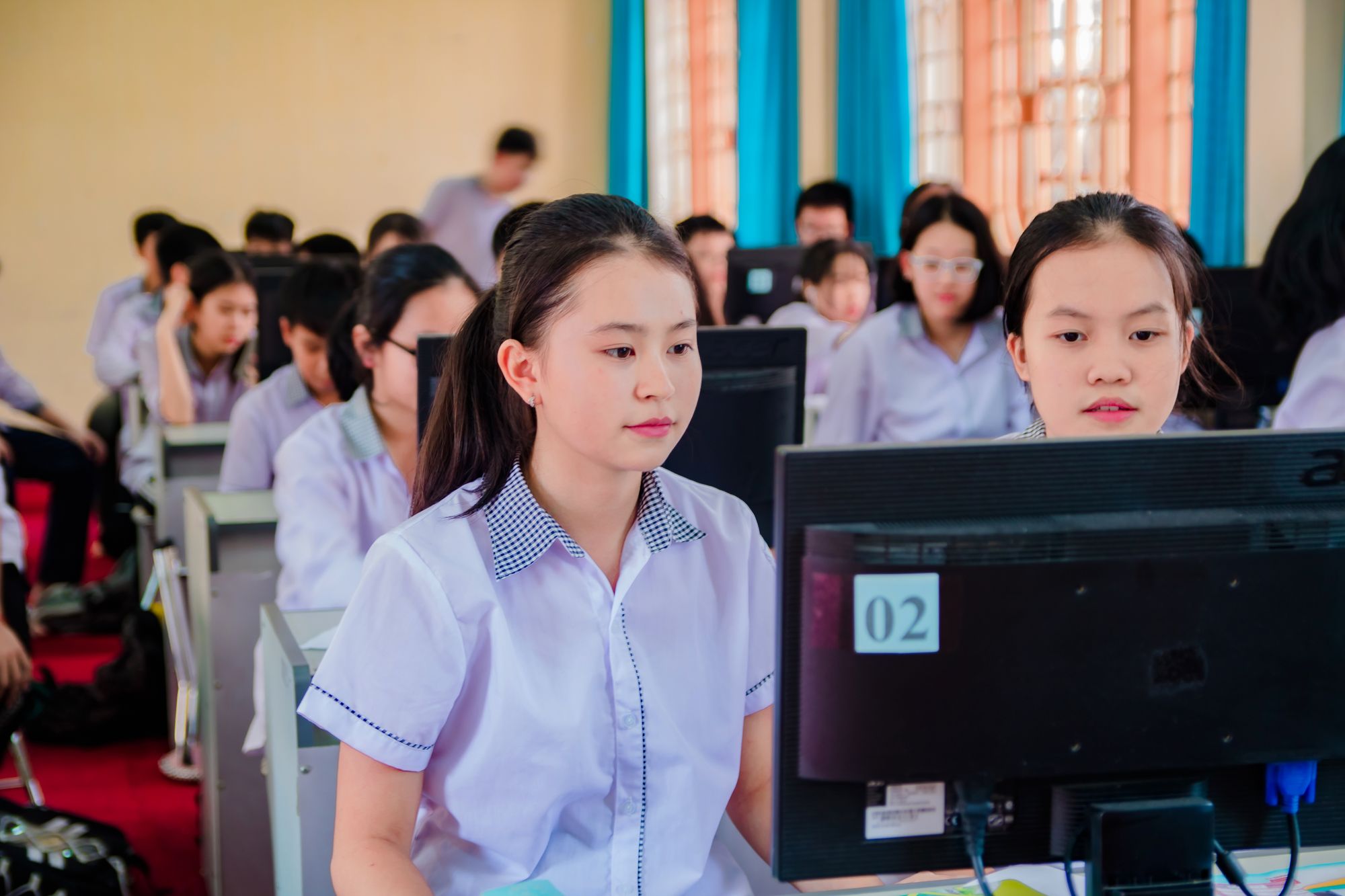
- Runs offline
- On the lab's own network, with no internet.
- CEFR built in
- Every lesson marked against a can-do statement.
- Every seat speaks
- A timed task records at every seat at once.
- Owned outright
- A licence that never expires.
From the sign-in to the marked recording
Six parts of one lab, for teachers, students and the technician.
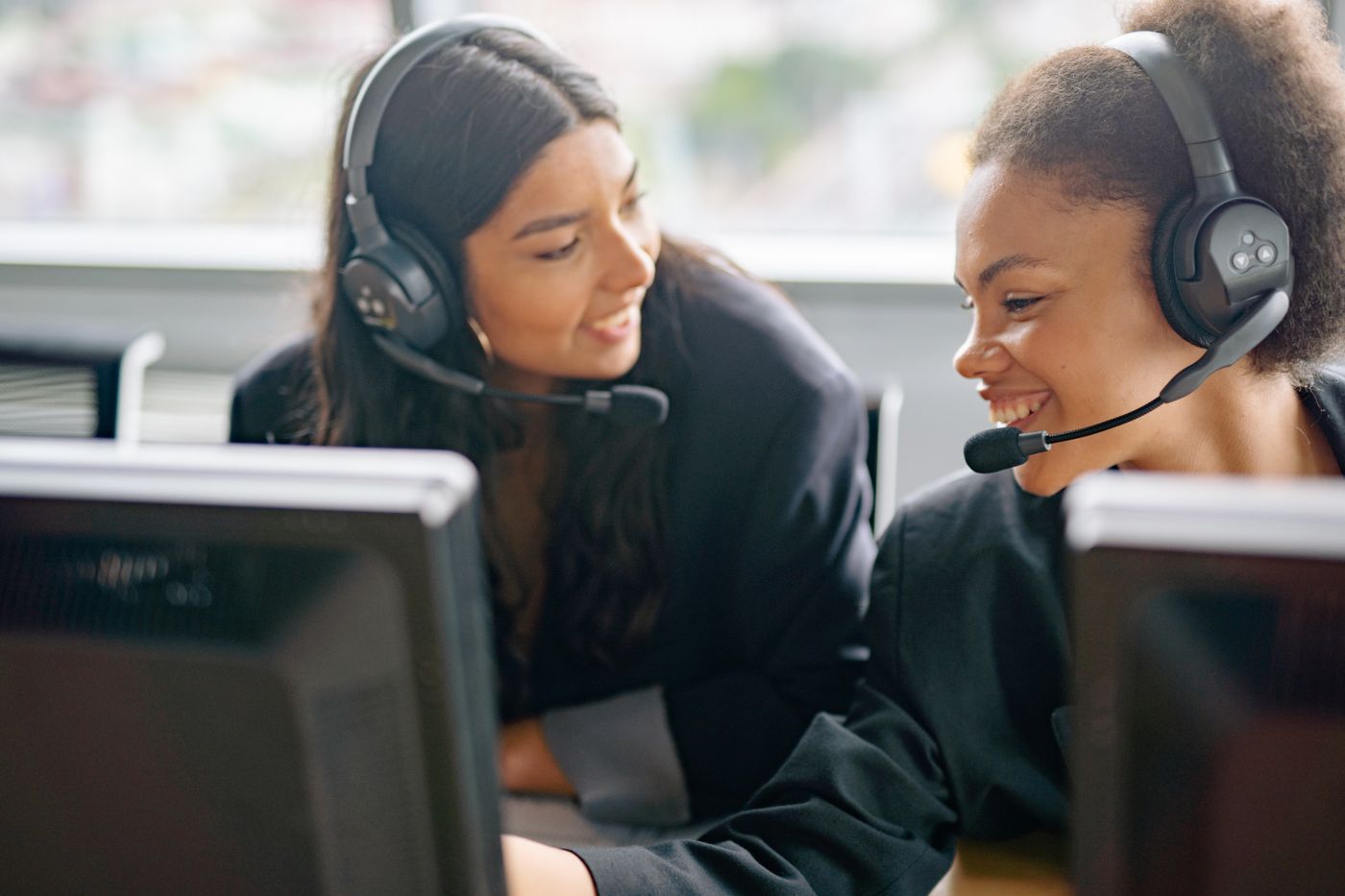
- Teach the roomThe seat grid, broadcast, cast and lock, from one screen.
- Voice and intercomTalk to anyone in the room, listen in, and pair students.
- Work at every seatWorksheets out and back, and quizzes with live results.
- Speaking and dictationSpeaking recorded at every seat, marked against CEFR.
- CEFR and recordsCEFR from A1 to C2, and a record of every lesson.
- The labEvery seat's PC, and updates from a USB stick.
A lesson on asasii lang lab
From the sign-in at the seat to the lesson kept on the teacher PC.
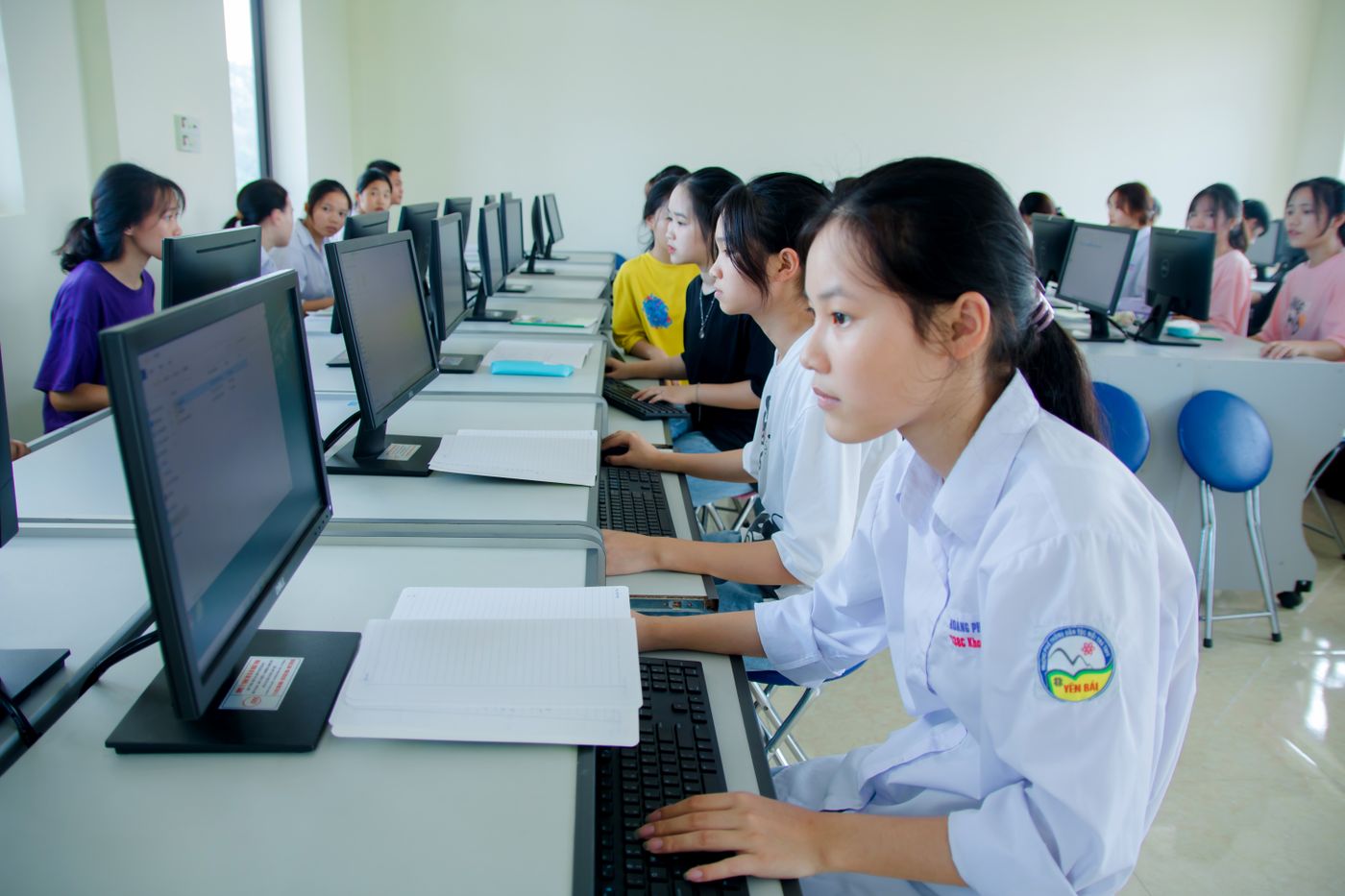
Students sign in
By picking a name from the class list, then testing the headset.
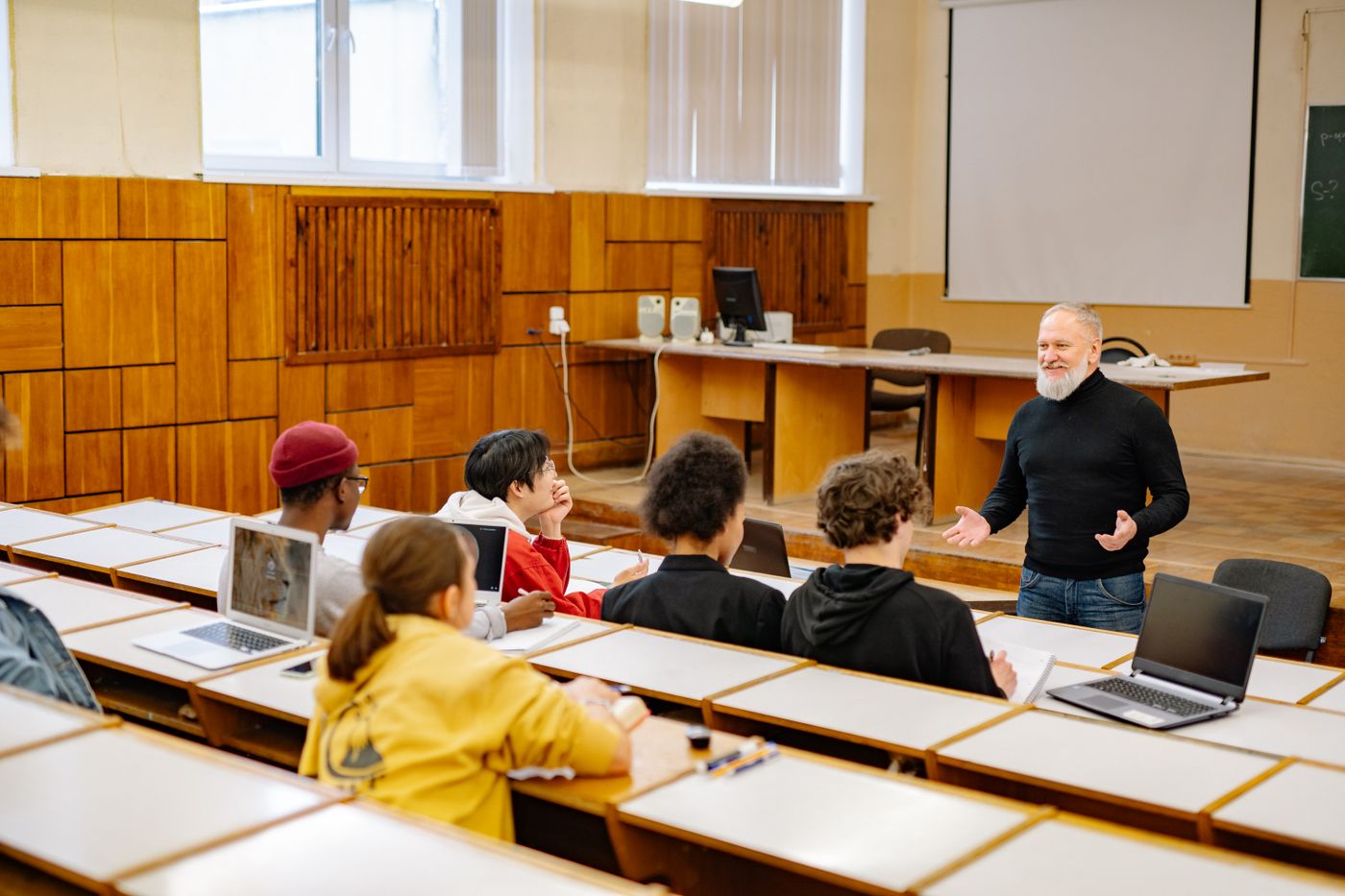
The teacher broadcasts
The warm-up goes to every seat, and the teacher talks to the whole class.
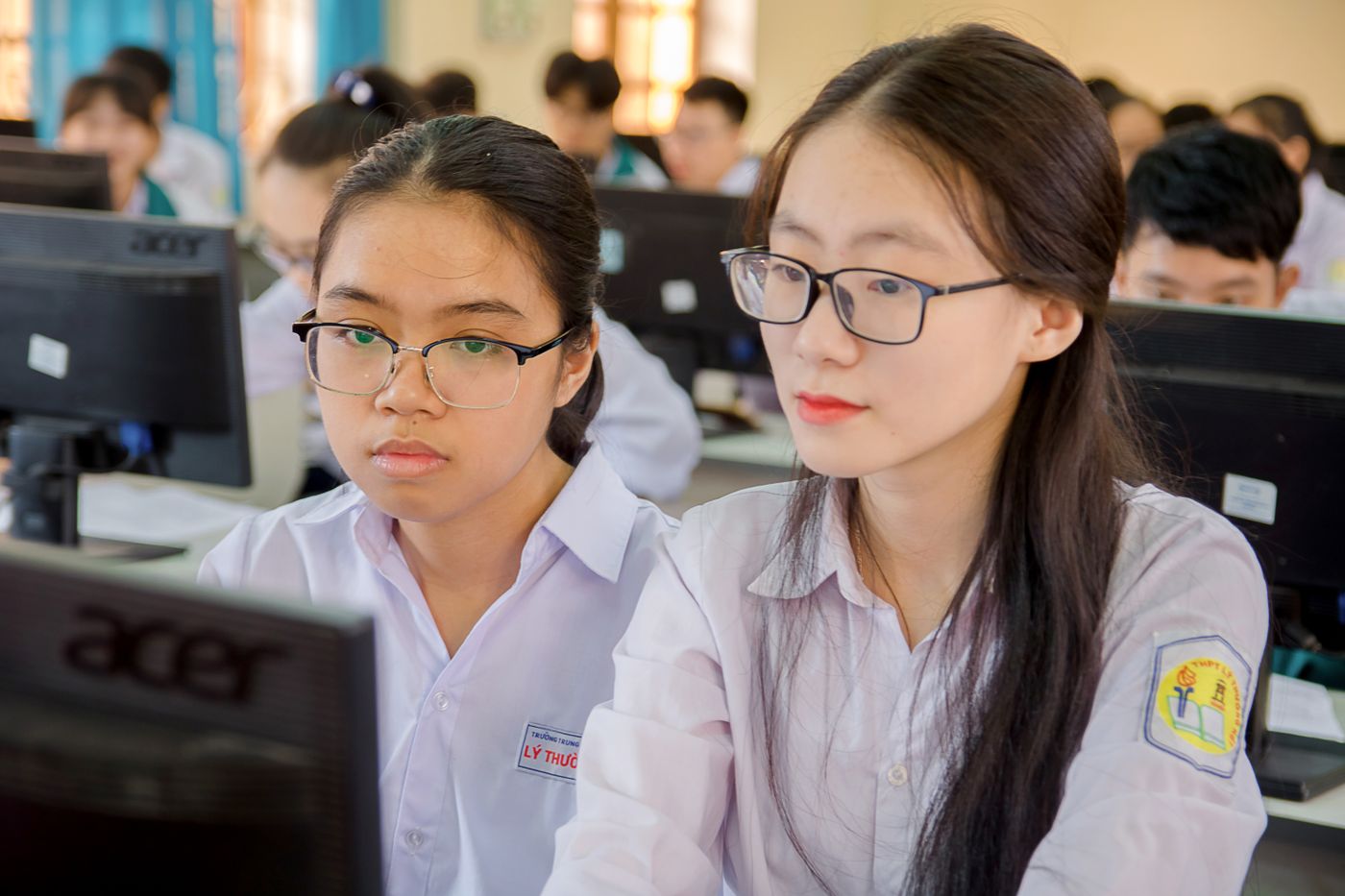
A student's screen is cast
One student's work is shown to the class, with a note to the student.

Pairs talk
Students are paired for conversation, and the teacher listens in.
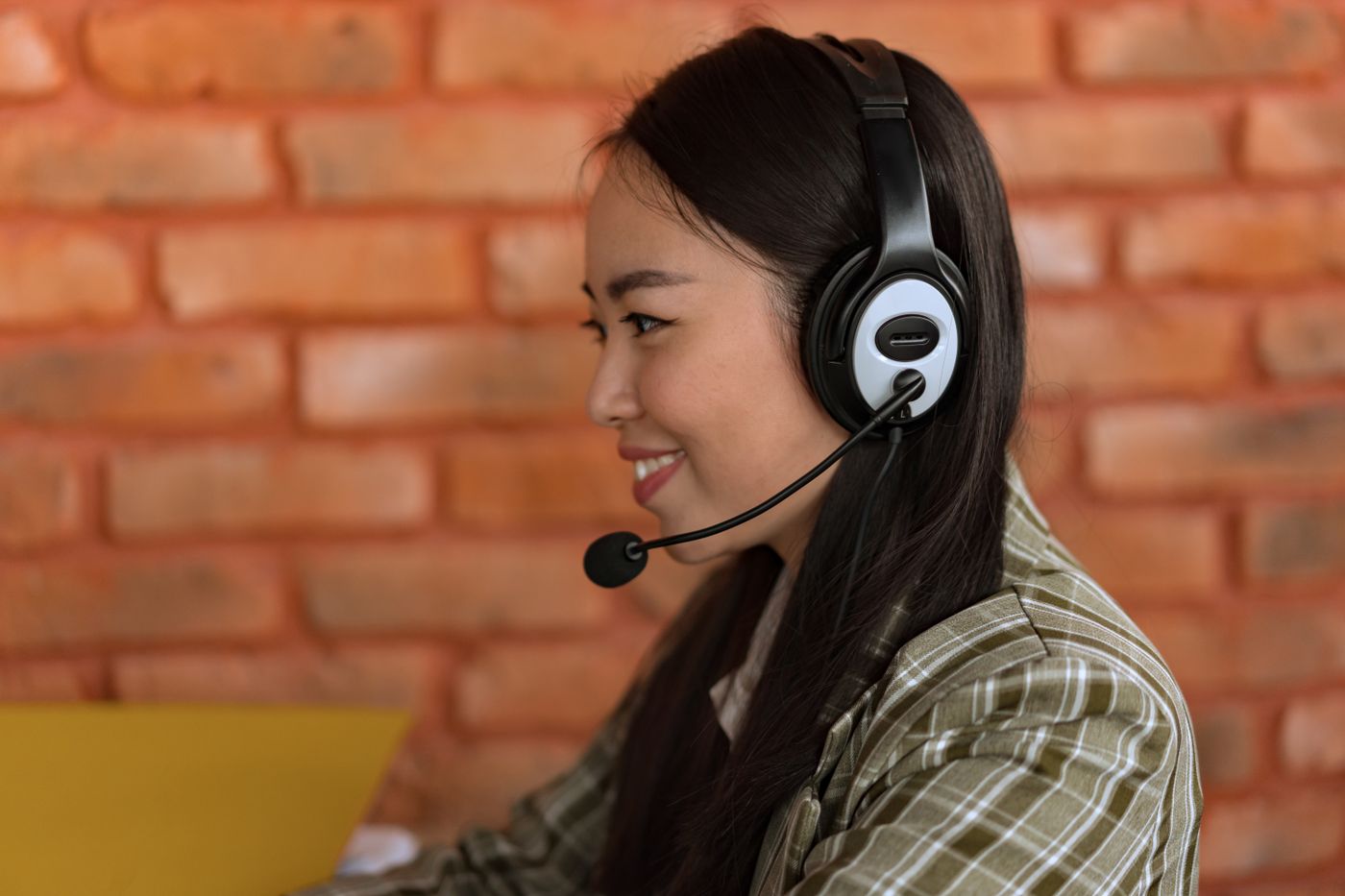
Every seat records
A timed speaking task records at every seat at once.
Clips are marked
Met, nearly or not yet against the can-do statement, with a comment.
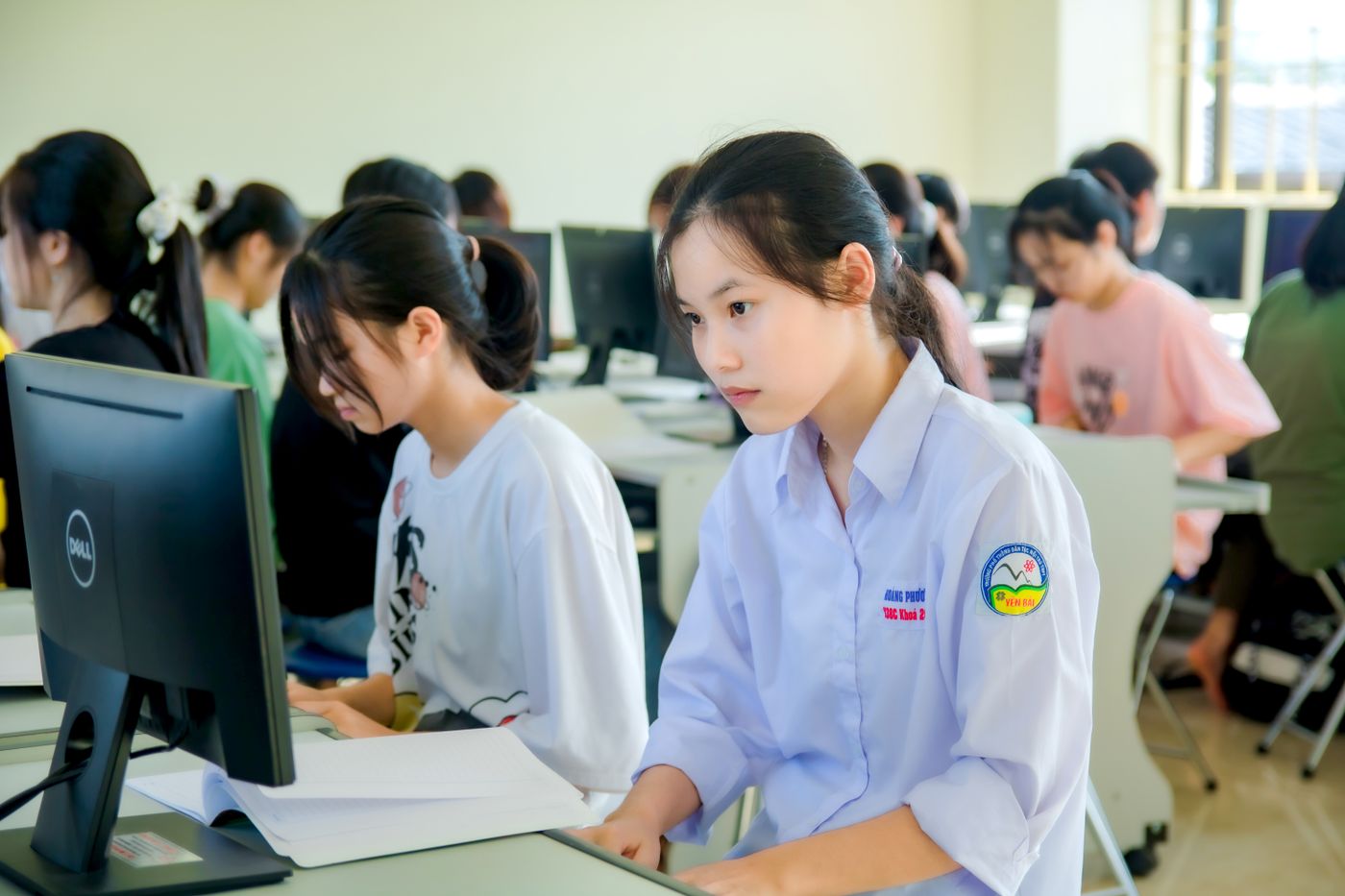
Dictation and a quiz
Sentence by sentence, then a quiz with live results.
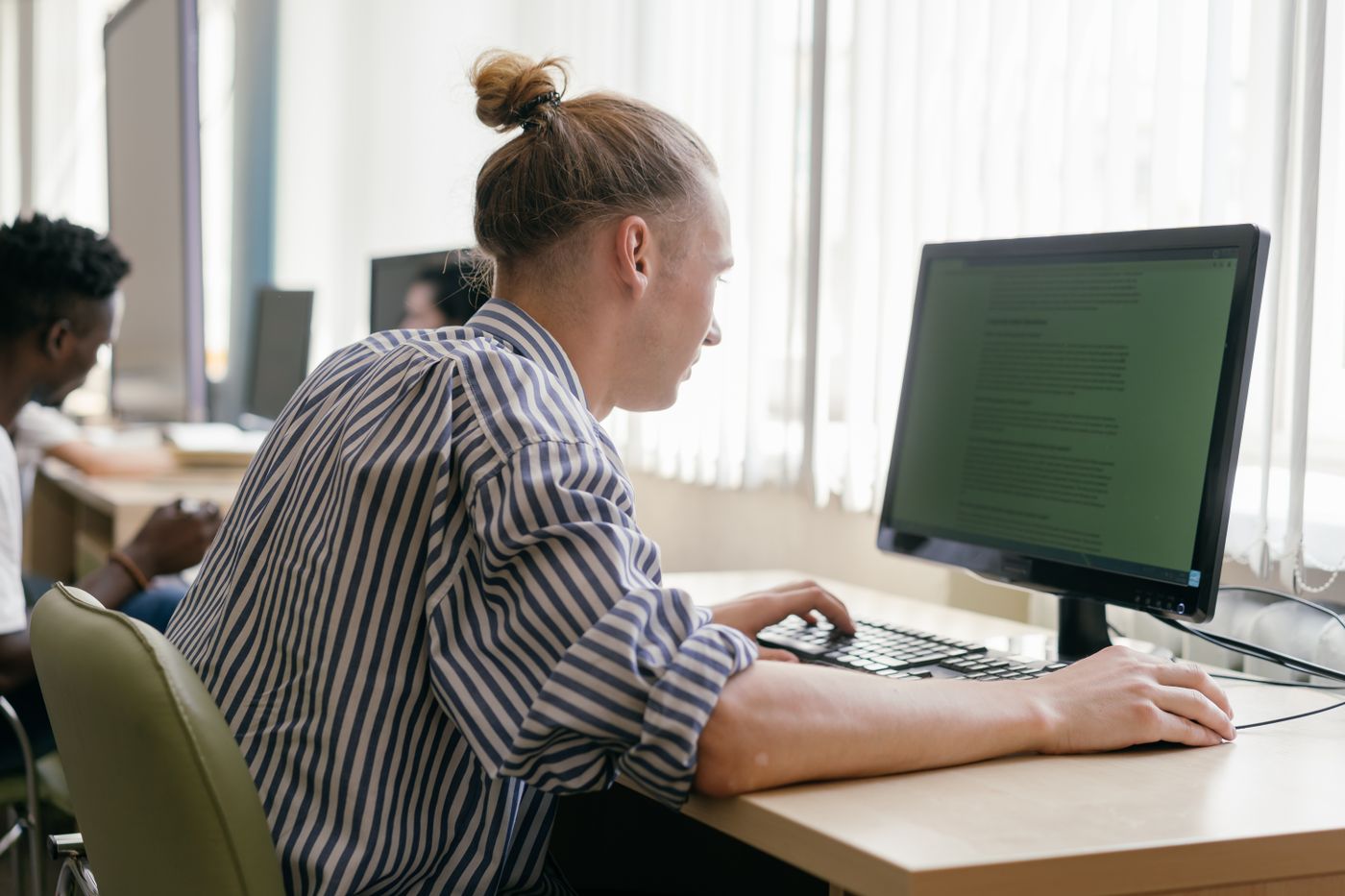
The lesson is kept
Attendance, files, results and recordings land in a dated folder.
Who it's for
Teachers, students and technicians, each with what they need in the room.
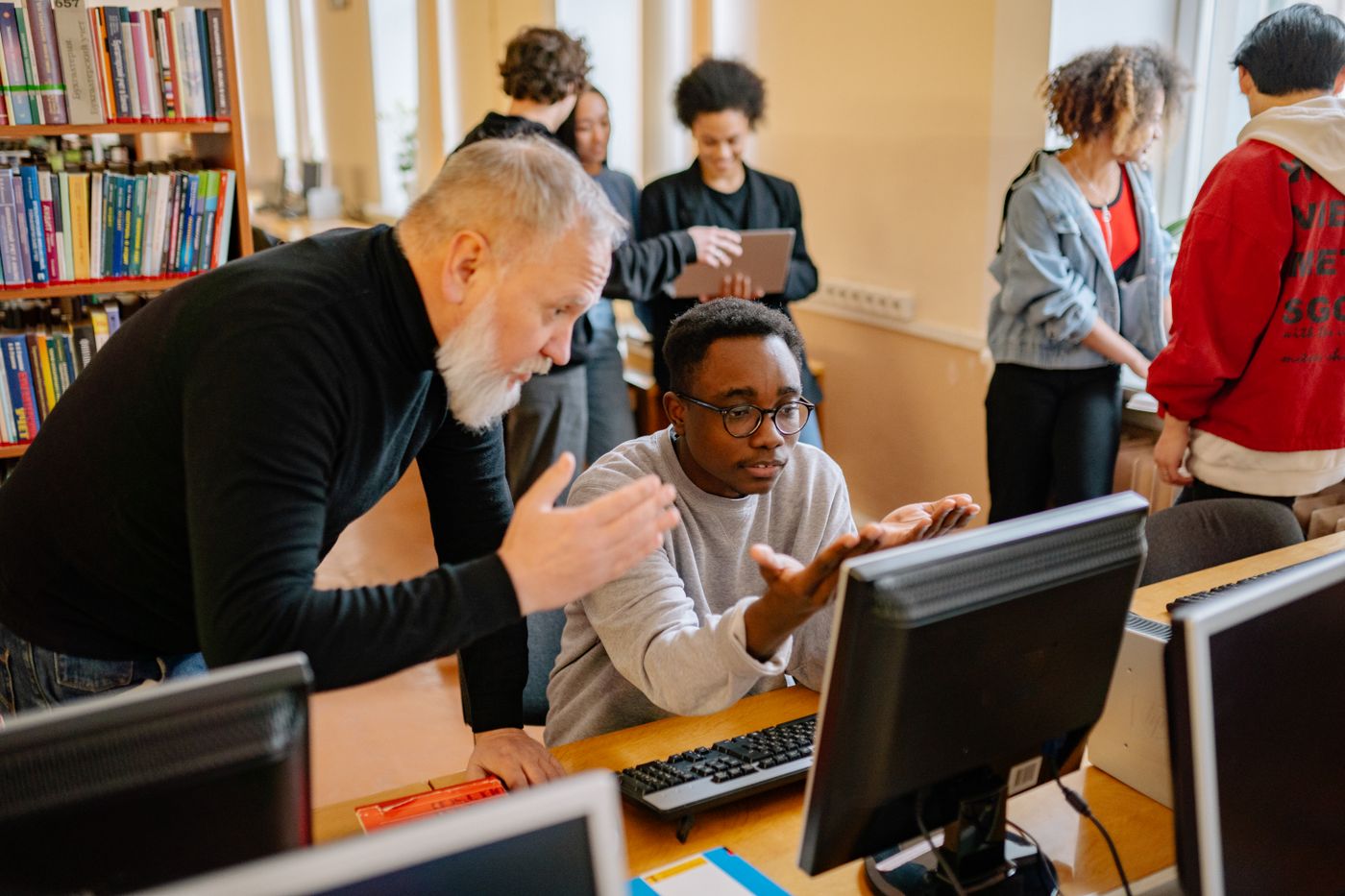
A licence, not a subscription that stops when the budget does
The institution buys a system and keeps everything it produces. idataraya installs it, trains the teachers and supports it.
| Topic | A cloud language platform | asasii lang lab |
|---|---|---|
| Who owns the software | The vendor; access ends with the subscription | The institution, on a licence that never expires |
| Where it runs | The vendor's cloud, over the internet | The lab's own network, offline |
| Student data | Held by the vendor under its terms | Never leaves the teacher PC |
| When the internet is down | No lesson | Every lesson |
| Pricing | Per student, per year | Per lab, students not counted |
Privacy and security in the lab
The questions a school leadership team and a university IT office ask, answered in the software.
Privacy and data overview- PDPA 2010
- Names, recordings and work stay on the lab's own network.
- No internet needed
- Lessons run entirely on the lab network.
- Thumbnails never recorded
- The teacher's view of each seat is never saved.
- Recording retention
- The institution decides how long recordings are kept.
- Local sign-in
- Teachers use a local profile and password; students pick a name, with a PIN if wanted.
- Visible to students
- The status bar shows when the teacher can see the screen and when recording is on.
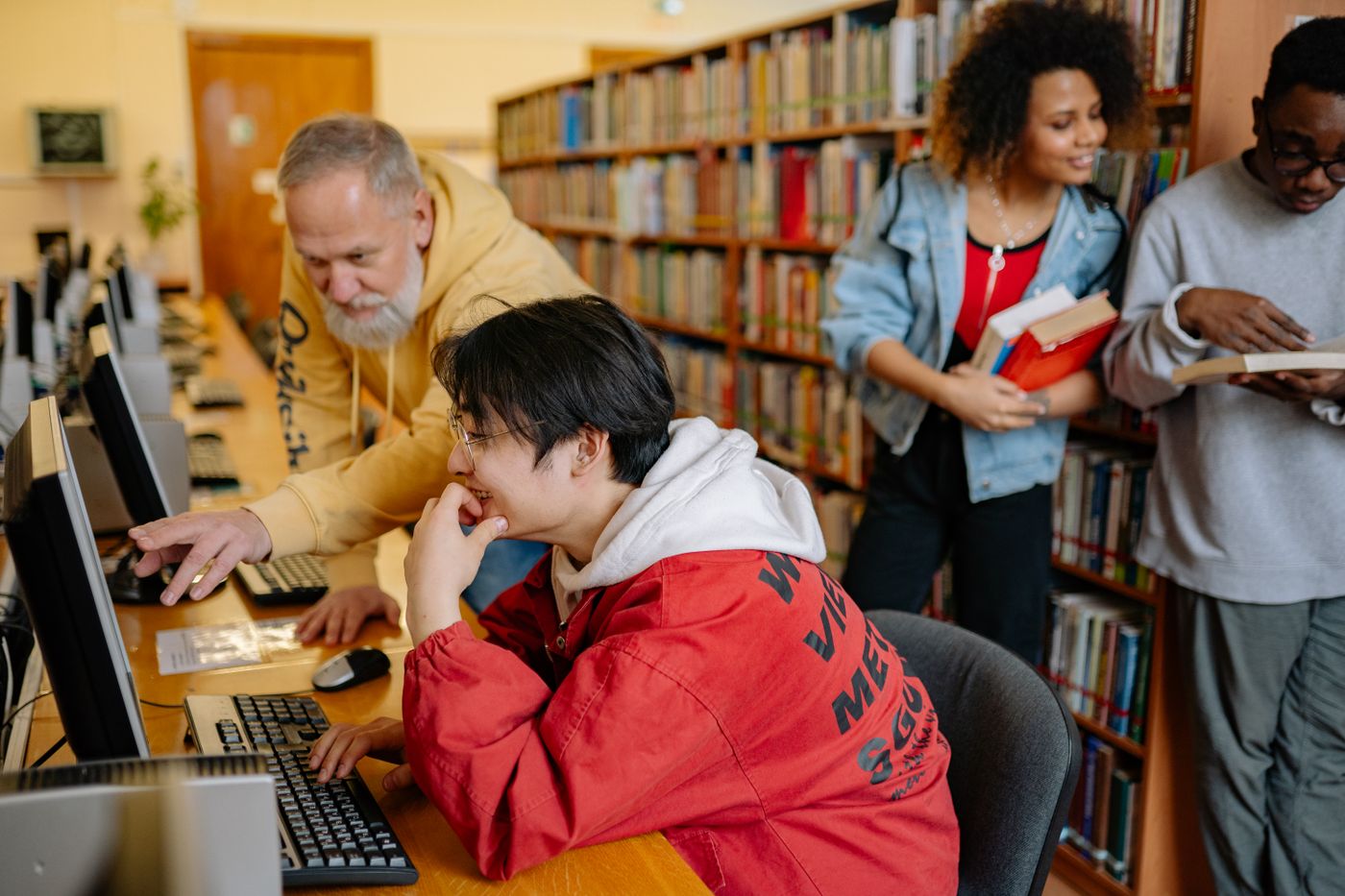
Installed and supported by idataraya
idataraya installs the teacher console and the student clients, checks every seat, runs the first lesson with the teacher and trains the teachers.
- Every seat checked before the first lesson
- The first lesson run with the teacher
- Three years of updates in the licence, on a USB stick
- Support from people who know the console
Questions schools ask
About the lab, teaching, the licence and privacy.
What does the lab need to run it?
One teacher PC and up to sixty student PCs running 64-bit Windows on the lab's wired network, with headsets. Two programs are installed: the teacher console and the student client. There is no server, no browser and no internet connection required.
Does it work without the internet?
Yes, entirely. The teacher PC is the server, the student clients find it on the lab network, and lessons, recordings and results live in a dated folder on the teacher PC.
How is speaking practice marked?
A timed task records at every seat. The teacher reviews the clips as they come in and marks each one met, nearly or not yet against the lesson's CEFR can-do statement, with a comment. Marked clips return to the student, and the student's progress is a record of can-do statements met.
Can it be used at a university?
Yes. Up to sixty seats, lecturer and teacher labels, class lists from a spreadsheet, CEFR to C2, and results exported to the institution's LMS or as a workbook.
What does the licence cover?
The institution, the lab and the seat count, read from a file on the teacher PC, with no expiry and three years of updates. A second lab is a second file. Replacing the teacher PC means copying the file, nothing else.
What about privacy?
Seat thumbnails are the teacher's view only and are never recorded. The student's status bar shows when the teacher can see the screen and when a recording is on. Names, recordings and work never leave the teacher PC, and the institution decides how long recordings are kept.